What is
myLPU e-Learning Portal?
The myLPU eLearning Portal is an advanced learning management system (LMS) utilized by LPU-Batangas to facilitate online learning. Designed to offer a comprehensive and interactive educational experience, this platform provides students and faculty members with a wide range of tools and features that promote engagement, collaboration, and access to course materials.
To access the myLPU eLearning Portal, users can simply visit the website URL:
Activation of Account
Lyceans, please be informed that you must activate your account to access your LPU credentials, including the Student Portal, LMS, Office 365, and other related services.
Please take note that activation is being done every after enrollment.
Account activation can be done 24 hours after you have received your Sales Invoice Number from the cashier.
You will receive a username and a temporary password for each portal.
Please note that you will be prompted to change your password upon your first login.
Make sure to remember the new password you set.
REMINDER:
To avoid issues when accessing the LMS—such as courses not loading properly or temporary passwords not working
-
Please copy the activation link and open it in an external browser (like Chrome or Firefox).
-
Avoid opening the link directly from Facebook Messenger or email, as it may cause loading errors or login problems.
Kindly follow the instructions below to activate your account.
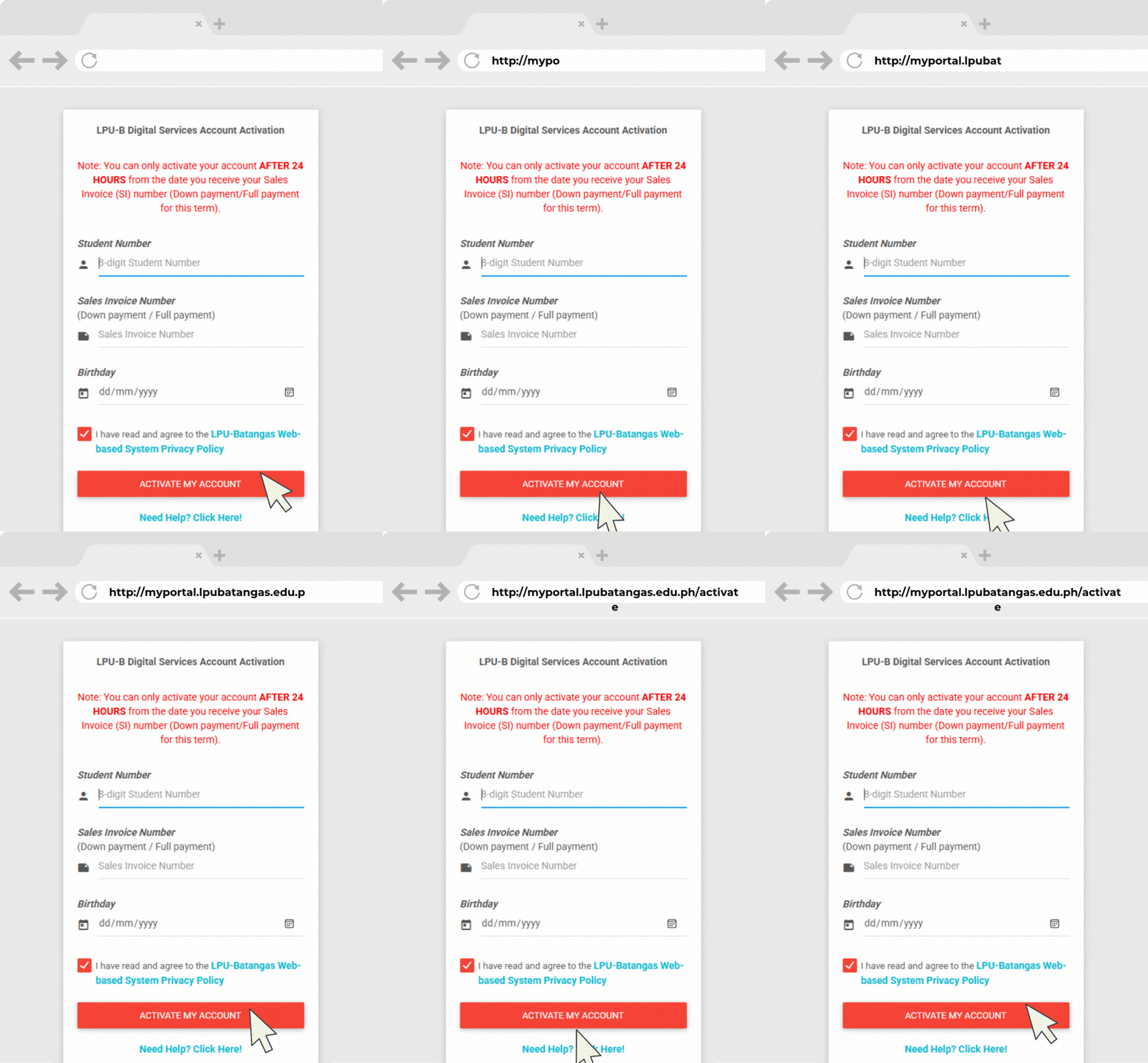
Go to the Activation link:
http://myportal.lpubatangas.edu.ph/activate
Enter your Student number, Sales Invoice number, and your Birthday.
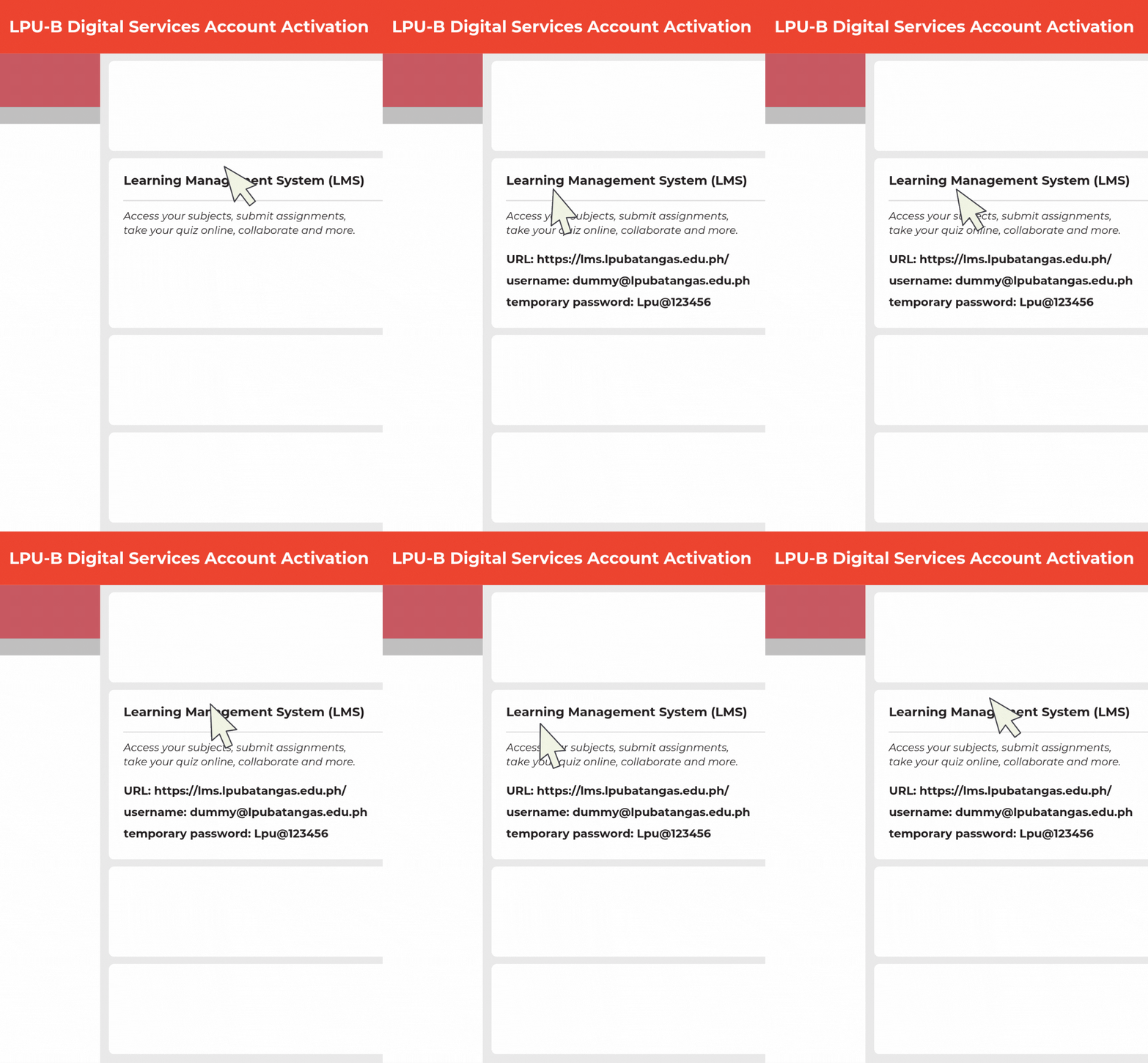
Get your LMS credentials
After activation, you will be given your LPU accounts. Get the link, username, and temporary password for the LMS.
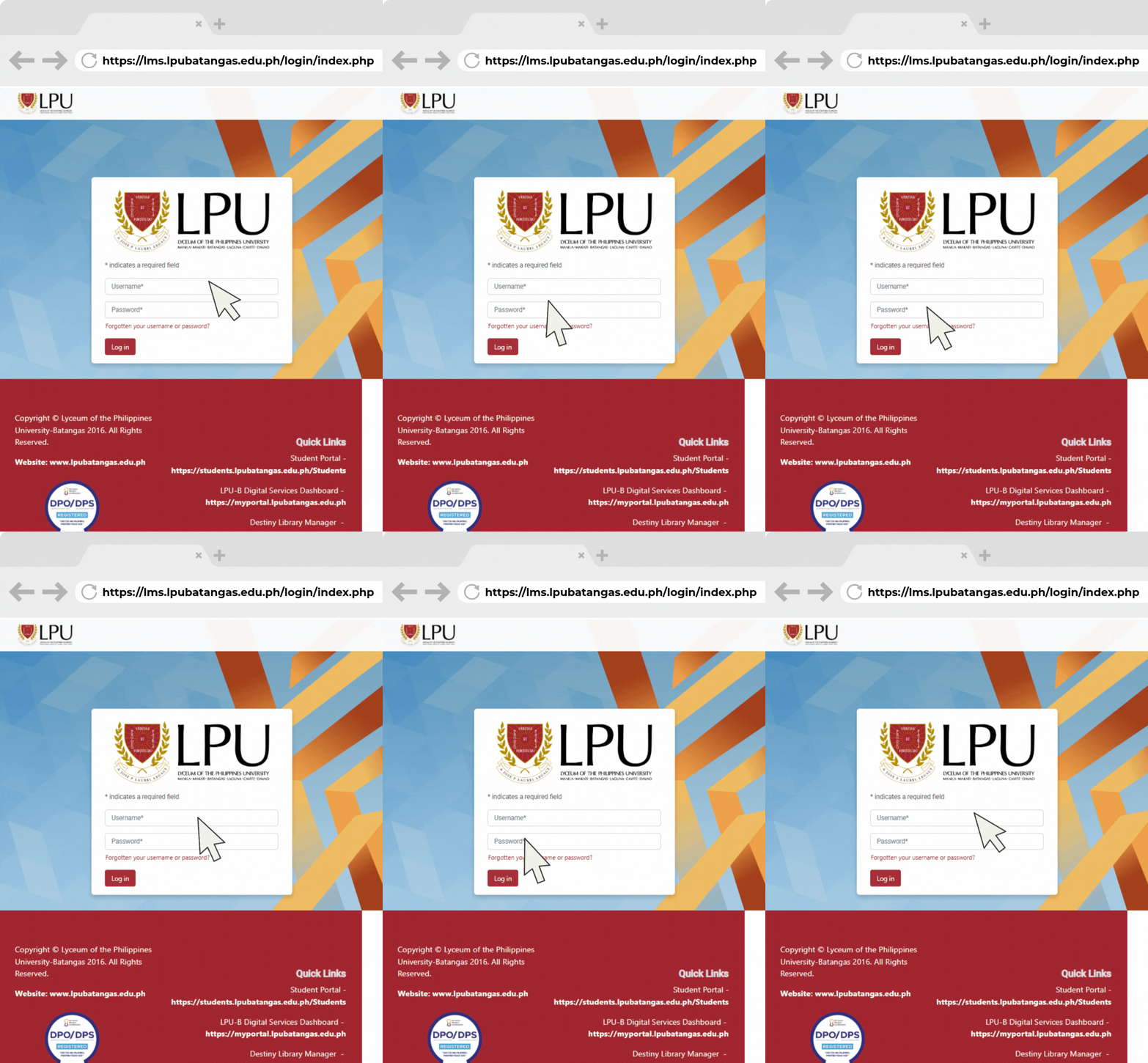
Log in to the LMS
Go to the LMS link:
https://lms.lpubatangas.edu.ph/
Enter the username and temporary password given upon activation.
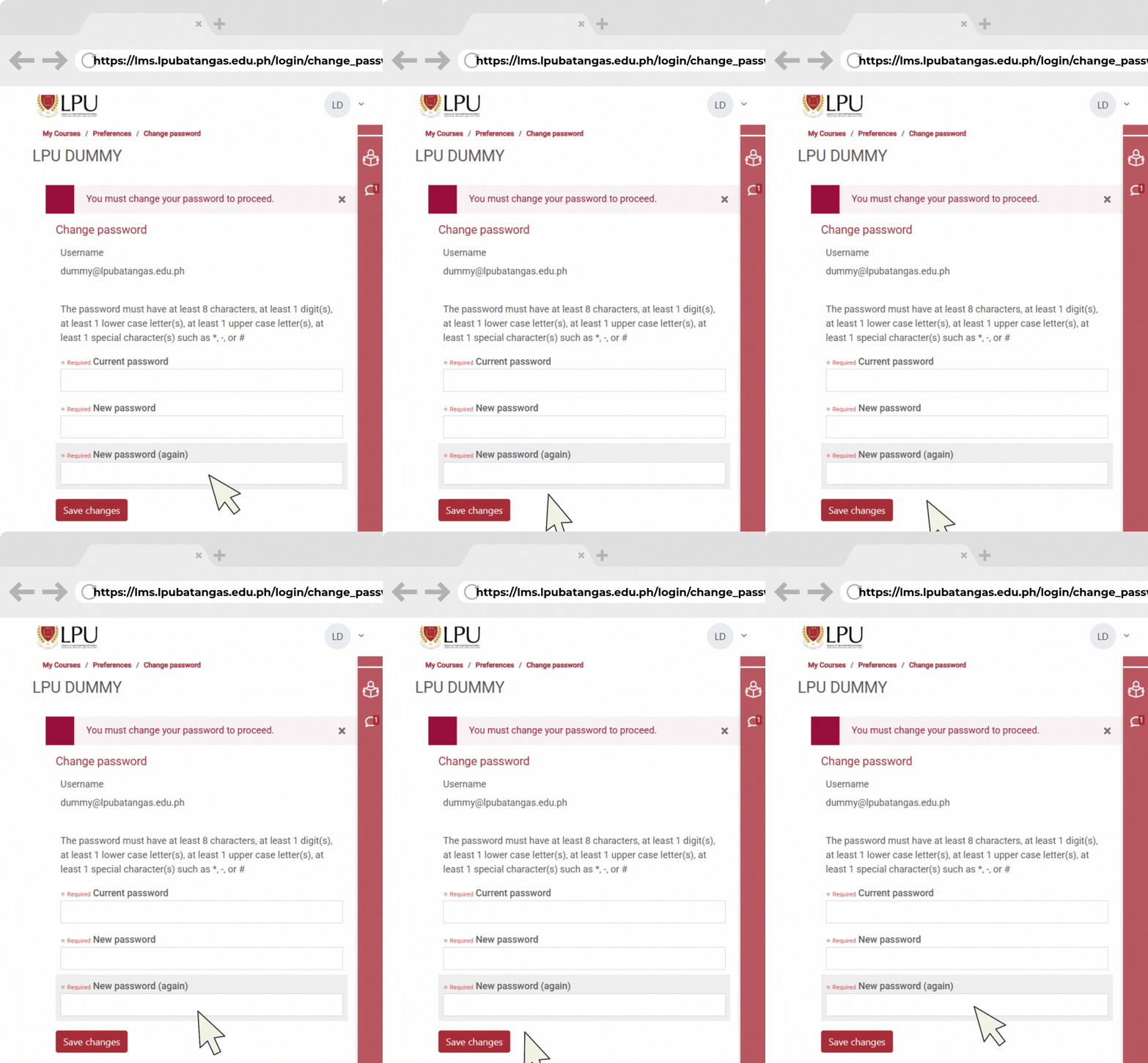
Change your password
On your first log in, you will be forced to change your password. Use the temporary password as your current password. Please remember the new password that you will set.
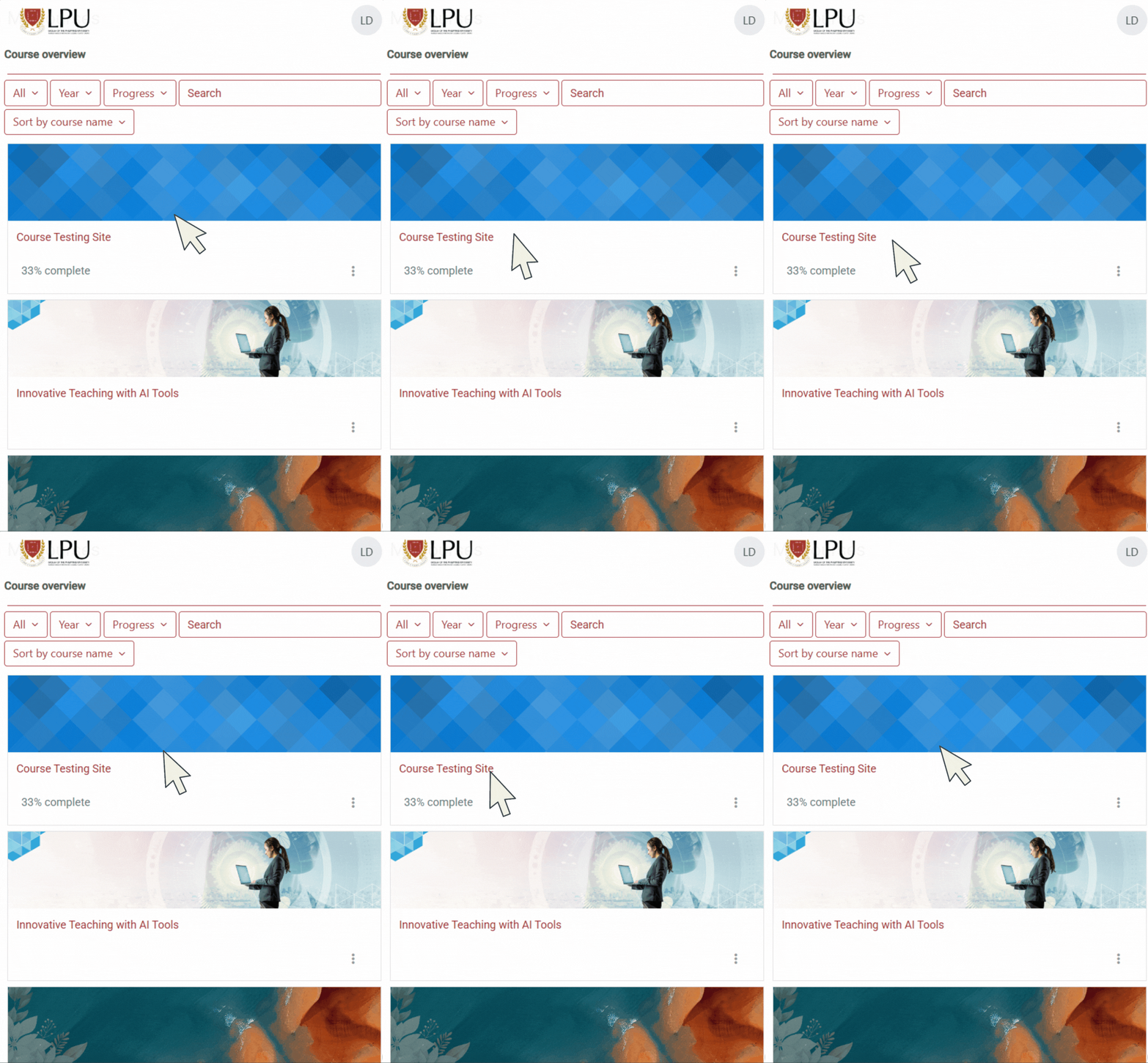
Welcome to your Course Dashboard!
After changing the password, you will be redirected to your course dashboard. This contains the courses/subjects you are about to take.
Congratulations! You have accessed now the LMS.
Navigating your Course Dashboard


Managing your Coursework


Frequently Asked Questions (FAQs)
I can't Activate my account. What should I do?
Please ensure that you correctly input your Student Number, Sales Invoice Number (provided upon enrollment), and your Date of Birth. Kindly note that account activation should be done 24 hours after receiving your Sales Invoice Number from the Cashier’s Office. If the issue persists after following these steps, please contact the MIS Department for assistance.
I can't log in to LMS after activation.
Please ensure that you use the LMS credentials provided during the activation process. Also, make sure to activate your account using a web browser (Chrome, Firefox, etc). Do not use the link from Messenger or other platforms, as this may cause login issues.
I don't have my LMS courses.
To add/update your LMS courses, kindly activate your account through https://myportal.lpubatangas.edu.ph/activate If after successful activation and you still dont have your LMS courses, please contact the Academic Center.
I forgot my LMS password.
If you have forgotten your username or password, click the “Forgotten your username or password?” link on the login page. You will be asked to provide either your username or your LPU email address. A password reset link will then be sent to your LPU email. If you do not see the email in your inbox, please check your Junk or Spam folder. In case you do not receive any email, please contact the Academic Center for manual password reset assistance.
My LMS courses is empty
Please note that learning materials and assessments are provided by your professor. For concerns regarding missing content, kindly contact your professor first and ensure that you are enrolled in the correct LMS course section. If you are enrolled in the wrong course, please reach out to the Academic Center to request a course adjustment.
I forgot/don't know my Office 365 credentials
Your Office 365 credentials are provided after successful account activation. If you have forgotten your credentials, please contact the Academic Center for assistance. For concerns related to the Microsoft Authenticator, kindly reach out to the MIS Department.